Welcome to Momentech! This guide will walk you through the first steps to get started using the application. Momentech is designed to make inventory management and order handling easier using barcode scanning directly from your phone.
Before You Begin
Before you can start using Momentech, you need to have received access to your account from us. You will receive an email address and a password that you use to log in. If you have not yet received this information, contact us and we will help you get started.
Log In
Open the Momentech app on your phone. You will be greeted with a login screen where you enter the credentials we have provided.
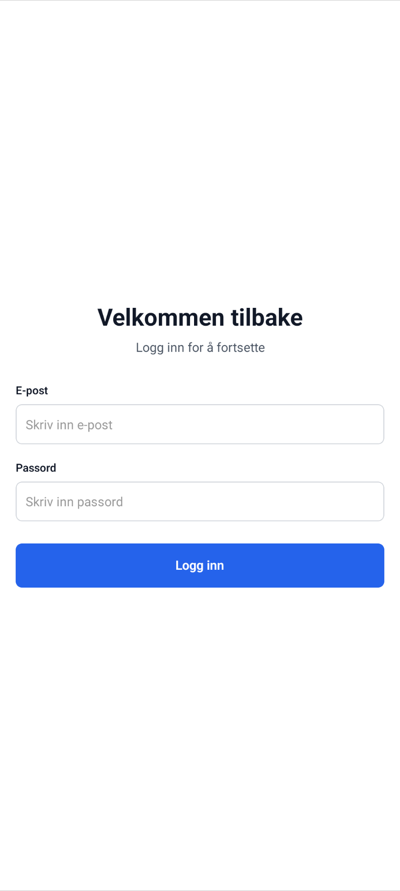
Use the email address and password provided by us. Make sure you enter the information correctly, and remember that the password is case-sensitive. If you experience problems logging in, check that you have the correct email address and password, or contact us for help.
Grant Camera Access
After logging in, you will automatically land on the barcode scanner. For the app to work optimally, it needs access to your phone's camera.
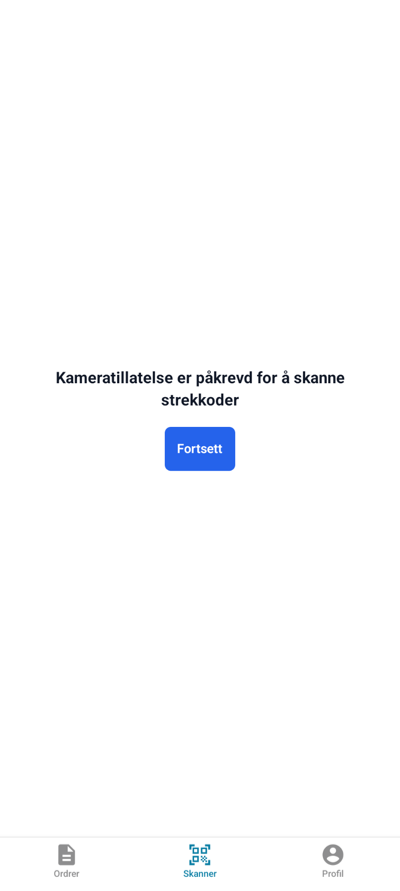
When you see the camera access request, tap "Allow" (depending on your phone's language). This is necessary for the app to scan barcodes. The camera is only used for barcode scanning and no images or videos are stored.
Once you have granted the necessary camera access, you are ready to start scanning barcodes. You will see a camera view with a scanning frame in the center.
Scan Barcodes
To scan a barcode, hold your phone so that the barcode is visible within the scanning frame. The app will automatically recognize the barcode when it is in focus. You can also manually focus by tapping the screen.
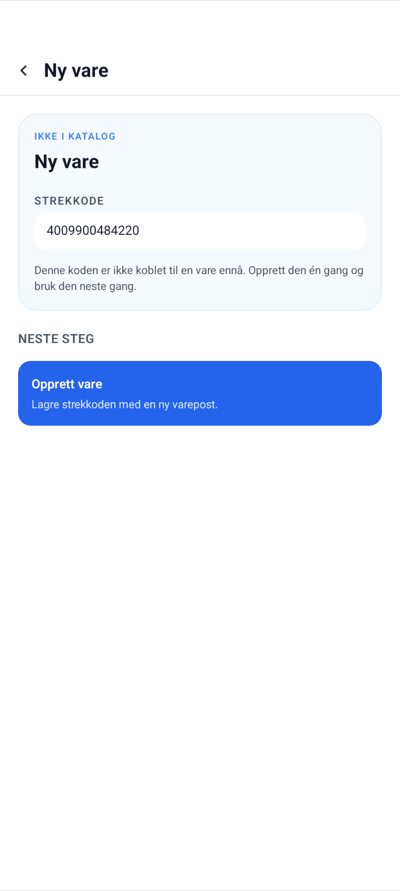
Once you have scanned a code, a page will appear showing information about the barcode. If this is the first time you are scanning this item, and you do not have any items in your database yet, you will be asked to Create the item for this barcode.
This is completely normal when first setting up the system. All items must be registered once before they can be used in orders and inventory management.
Create a New Item
When you tap "Create the item for this barcode", you will be taken to a screen where you can register information about the item.
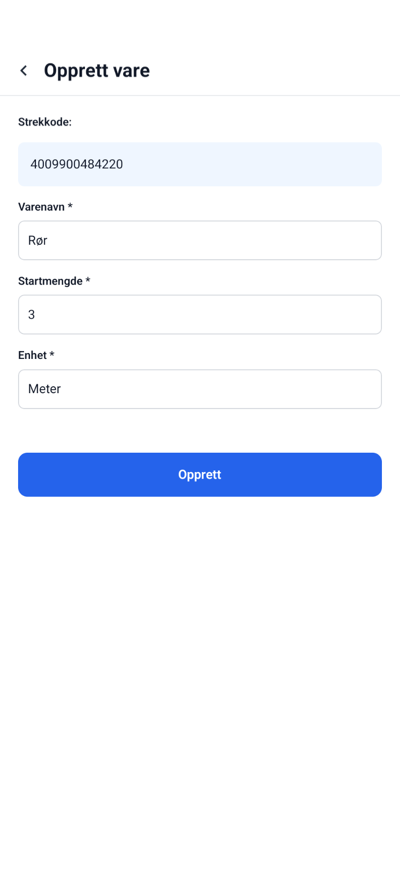
On this screen you can:
- Set item name: Give the item a descriptive name that makes it easy to recognize later
- Register stock quantity: Enter how many units you have in stock for this item
It is important to give the item a clear name, as this will make it easier to find and manage the item later. The stock quantity can always be adjusted later if you receive more items or sell some.
Once you have filled in the information and tap "Done", you will be taken back to the barcode scanner. From here you can either scan the same item again (to add it to an order or adjust inventory) or scan new items to register them in the system.
Add to Order or Adjust Inventory
If you scan an item that is already registered in the system, you will be taken to a detail page for the item.
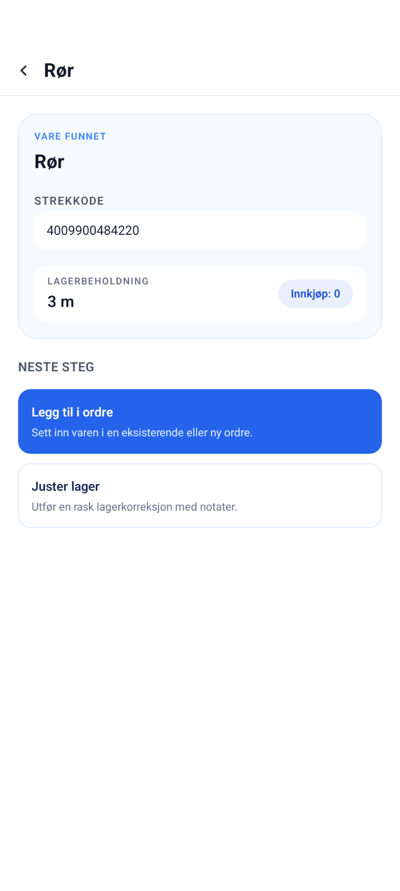
On this screen you have several options:
- Add to order: If you need to use the item in an order, you can add it directly. You can choose an existing order or create a new one.
- Adjust inventory: If the stock quantity has changed (you have received more items or sold some), you can update the quantity here.
This makes it easy to keep track of both inventory levels and which items are linked to different orders.
Create a New Order
When you create a new order, you will be taken to a screen where you can give the order a name.
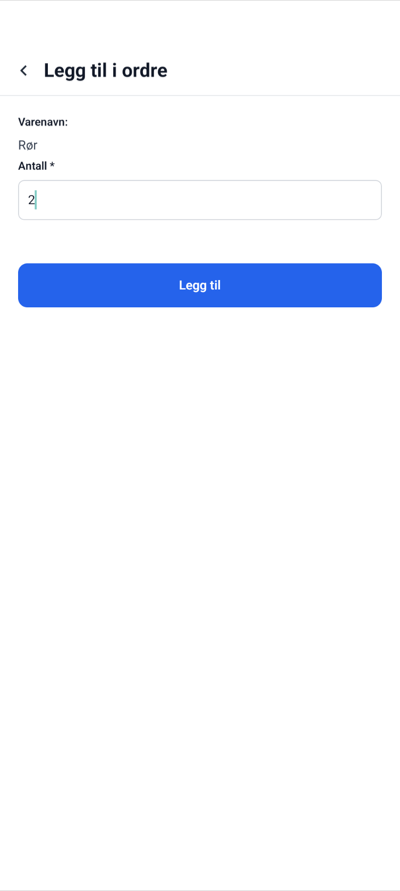
Give the order a descriptive name that makes it easy to identify later. For example, you can use a customer name, project name, or an order number. This name will appear in your order overview.
After you have added items to the order, you will be taken back to the order overview.
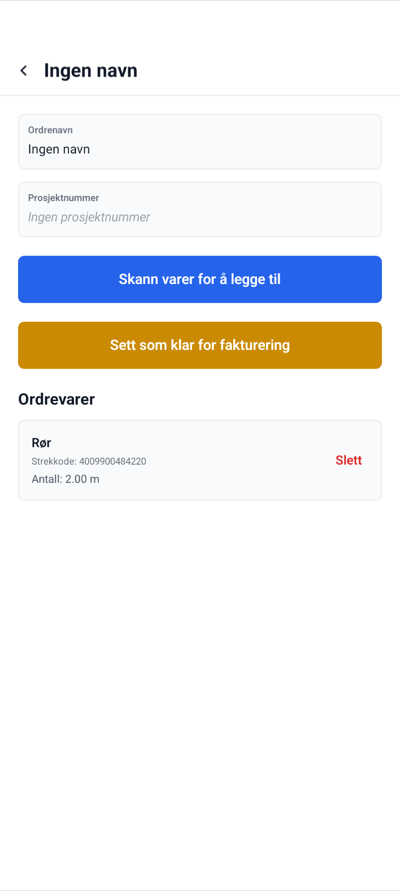
In the order overview you can:
- Add a project ID: If you need to link the order to a specific project or customer, you can add a project ID here
- Add more items: You can continue scanning items to add them to the same order
- View summary: You get an overview of all items that have been added to the order
The order overview gives you full control over what is included in the order before it is sent further.
Tips for Best Use
- Hold your phone steady: For the best barcode scanning results, hold your phone steady and ensure good lighting
- Use descriptive names: Give both items and orders clear names that make them easy to find later
- Update inventory regularly: Keep your stock levels updated to have an accurate overview of what is available
- Organize orders: Use project IDs or descriptive order names to keep track of different projects or customers
You Are Ready!
You have now learned the basic functions of Momentech. You can:
- Log in to the app
- Grant camera access and scan barcodes
- Register new items in the system
- Add items to orders
- Create and manage orders
- Adjust inventory levels
Momentech is designed to be intuitive and easy to use. If you have questions or need help, we are here to support you. Good luck using the app!